Agents and MCP
Let Claude Code, ChatGPT, Claude, Cursor, Codex or any MCP agent design on your canvas.
Agents read and write your Gesso files through MCP, the standard way AI agents use tools. Because every layer in Gesso is real HTML and CSS — which models already know well — an agent can build a design, read one exactly, and turn one into code without guessing.
Getting started
1. Open Gesso
Install and open Gesso. That starts its MCP server on this computer.
2. Connect your agent
There are three ways in, depending on where the agent runs.
| Agent | How it connects | What to do |
|---|---|---|
| Gesso's Terminal | Built in | Press Terminal (top right) and run claude, codex or another agent — it's already connected |
| Claude Code | Set up automatically | Restart Claude Code once, then /mcp to check |
| Cursor | Set up automatically | Reload the window; check Settings → Tools & MCP |
| VS Code | Set up automatically | Start the gesso server when VS Code asks |
| Codex CLI | Set up automatically | Open a new Codex session |
| Windsurf, Cline | Set up automatically | Restart the agent |
| Claude (claude.ai and desktop) | Online address | Add a custom connector — below |
| ChatGPT | Online address | Add a connector — below |
| Any other agent | Online address | Add the address as an HTTP server — below |
“Set up automatically” means Gesso writes itself into that agent's settings each time it opens, keeping anything else you have there. It only does this for agents installed on this computer.
The Terminal
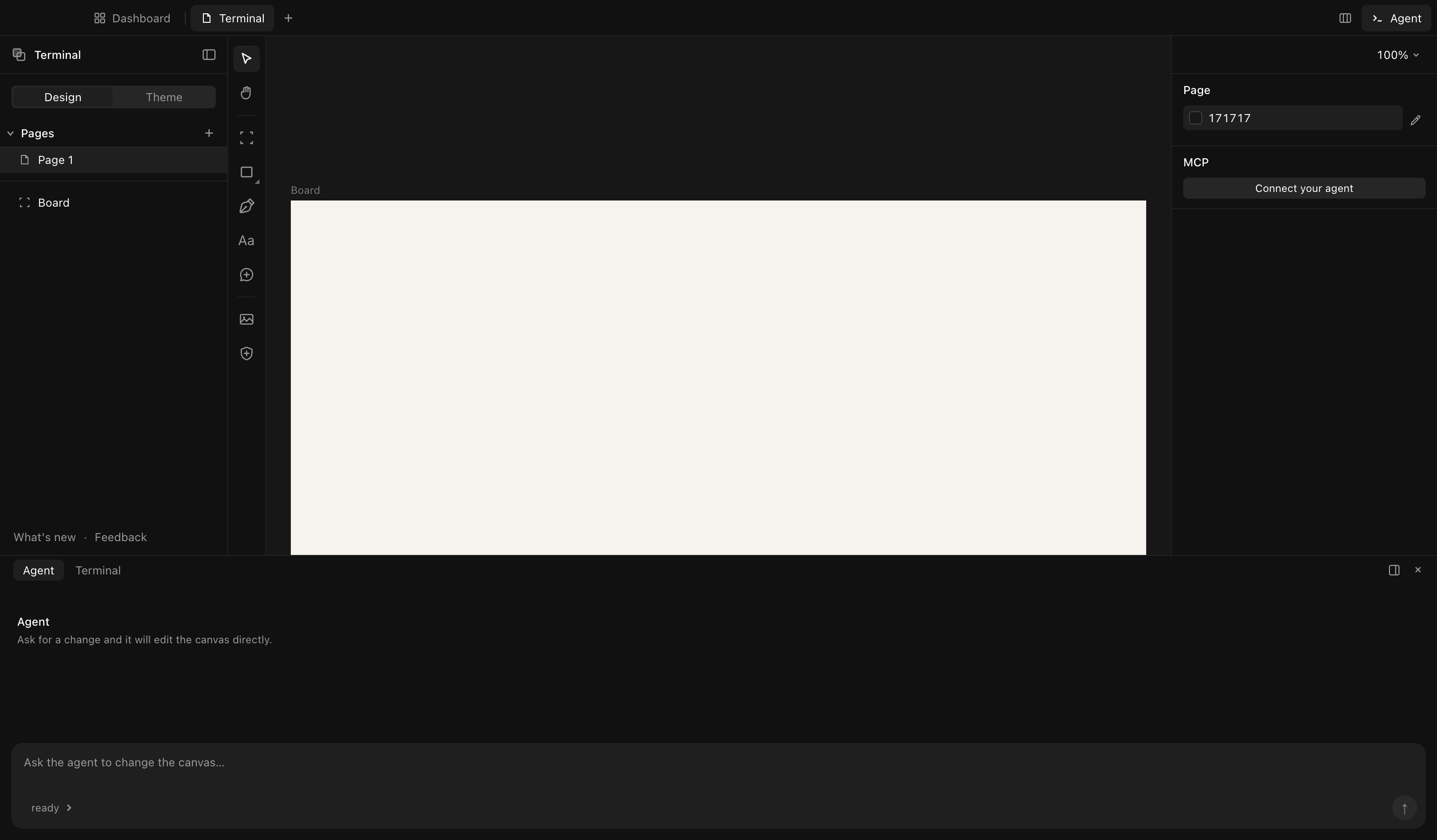
Press Terminal at the top right, or ⌘J. A real terminal opens under your design, already connected to Gesso — run claude, codex or any command-line agent and ask it for a design.
Claude Code
Nothing to do once Gesso has been opened. Restart Claude Code, then run /mcp — gesso should be listed.
Or, set it up by hand
On another computer, or to use your account from anywhere, add the online address and sign in when asked:
claude mcp add --transport http gesso https://www.gesso.online/mcpThen run /mcp, choose gesso and pick Authenticate.
Cursor
Set up automatically. Gesso appears in Cursor Settings → Tools & MCP; if the agent can't see it yet, reload the window or switch the server off and on.
Or, set it up by hand
Add this to ~/.cursor/mcp.json:
{
  "mcpServers": {
    "gesso": {
      "type": "http",
      "url": "https://www.gesso.online/mcp"
    }
  }
}
VS Code
Set up automatically for VS Code's own agent mode. Start the gesso server when VS Code asks.
Or, set it up by hand
Open the command palette, run MCP: Add Server, choose HTTP and paste https://www.gesso.online/mcp.
Codex
Set up automatically in ~/.codex/config.toml. Start a new Codex session.
Or, set it up by hand
[mcp_servers.gesso]
url = "https://www.gesso.online/mcp"
Claude (claude.ai and the desktop app)
- In Claude, open Settings → Connectors and press Add custom connector.
- Name it Gesso and paste the address:
https://www.gesso.online/mcp - Press Connect. Your browser opens: sign in, then press Allow.
- In a chat, turn Gesso on from the tools menu under the message box.
Custom connectors may need a paid Claude plan.
ChatGPT
- In ChatGPT, open Settings → Connectors (turn on developer mode under Advanced if you don't see the option to add one).
- Create a connector named Gesso with the address
https://www.gesso.online/mcp. - Your browser opens: sign in, then press Allow.
- In a chat, choose Gesso from the tools menu and ask for a design.
Other agents
Any agent that supports remote MCP servers with sign-in can use the online address. Add it as an HTTP server — usually like this:
{
  "mcpServers": {
    "gesso": {
      "type": "http",
      "url": "https://www.gesso.online/mcp"
    }
  }
}
Check that agent's docs if its settings file looks different.
3. Run your first prompt
Open a file in Gesso, then try one of these:
- “Make a 1080×1080 Instagram post announcing our spring sale.”
- “Create three colour tokens and a swatch for each.”
- “Design a landing page hero for a coffee subscription, then a phone version beside it.”
The agent may ask permission to use Gesso's tools. You'll see the design appear and build in the open file.
Agents on the internet
How the online address works
ChatGPT and Claude.ai run on their companies' servers, not your computer, so they can't reach Gesso directly. The online address is a relay: the agent signs in as you, and its requests go to the Gesso app you have open and signed in. Your files never leave your computer to be stored.
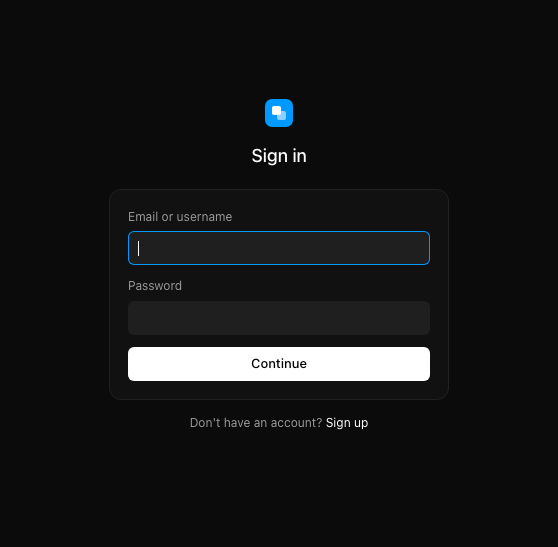
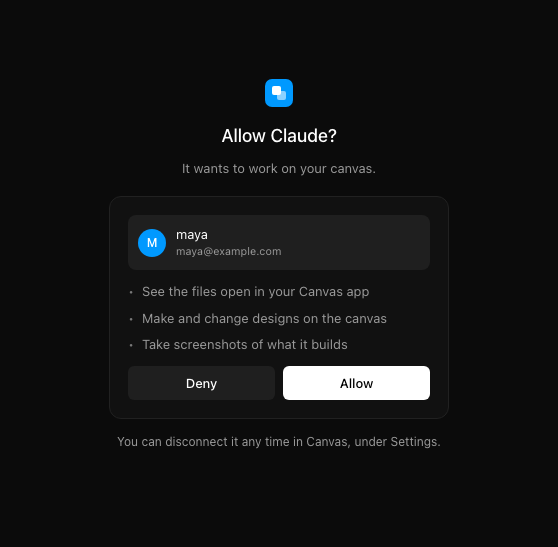
Keep Gesso open and signed in while an online agent works. If it's closed, the agent can't build anything and will say the app isn't connected.
Manage agents
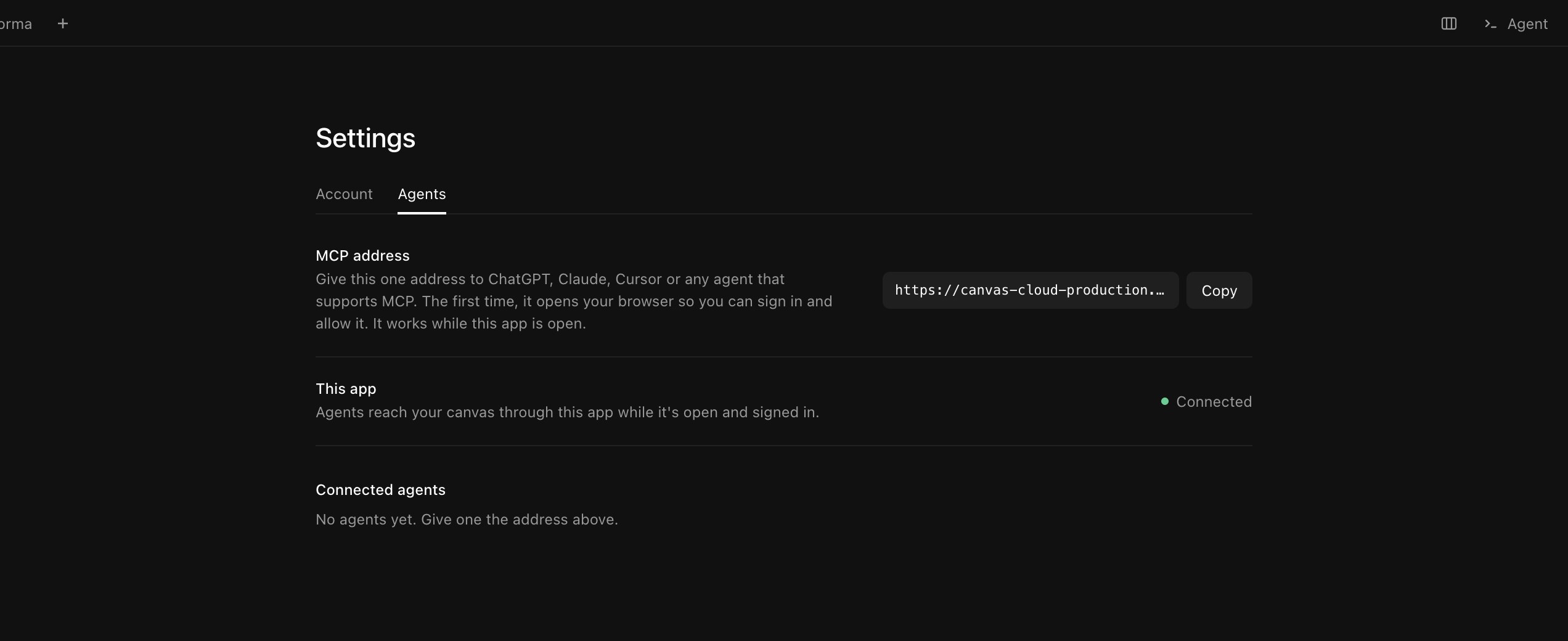
Settings → Agents shows the address, whether this app is connected, and every agent you've allowed. Disconnect cuts one off at once.
One computer at a time
An account is signed in on one computer at a time. Signing in somewhere new signs the other computer out, and it tells you why. Agents you've allowed follow whichever computer is signed in.
Errors and troubleshooting
When something goes wrong
Most problems are fixed by starting a new agent session, which reconnects it. Long-running sessions are the usual cause.
- The agent says Gesso isn't connected. Check Gesso is open. For online agents, check Settings → Agents says Connected — if you were signed out because the account signed in elsewhere, sign in again.
- Gesso shows as connected but the agent says it has no Gesso tools. Restart the agent app so it picks the server up. In Cursor, switch the server off and on in Settings → Tools & MCP.
- Lots of tool errors. Models sometimes get a tool's details wrong. Start a fresh session.
- Changes land in the wrong file. An agent keeps working in the file it created or opened, even if you switch tabs. Ask it which file it's using, or to open the right one.
- The Allow page shows an error. The request may have expired — go back to the agent and connect again.
Still stuck? Email support@gesso.online, send a note from Feedback at the bottom of the left panel, or ask your agent to troubleshoot with a link to this page.
Guides
Building a website from a design
Because a Gesso design is already HTML and CSS, an agent can turn it into a working site closely.
- Make a new folder and open your coding agent in it.
- In Gesso, select the frame you want built.
- Ask: “Build a website in this folder from the frame I have selected in Gesso. Use React and Tailwind.”
- The agent reads the frame's exact structure and styles, then writes the code and usually starts a local preview at an address like
http://localhost:5173.
Designs built with layouts (rows, columns, gaps) translate best. Start with one section, check it, then build up — and ask the agent to commit to git as you go, so any step can be undone.
Designing with real content
If your agent also has another MCP connected — your notes, a database, a CMS — it can pull real copy into a design instead of placeholder text. Select the section and ask: “Fill this testimonial section with the five most recent testimonials from my Notion database.” Then try translating it to see how the layout holds up in German or Spanish.
Tokens from your codebase
Open your agent in your project and ask it to create Gesso tokens from your CSS variables. It reads them from your code and adds them to the file's Theme tab. See Tokens.
Addendum
What is MCP?
The Model Context Protocol is an open standard that lets AI agents use tools in other apps — something like an API made for models. Gesso offers its canvas as tools: read the layers, write HTML as layers, take a screenshot, check a layout, export code. Any agent that speaks MCP can use them, which means the agent you already work with can design, and can use your design as exact context when it writes code.